Download Allocator Reports and Export Files
Use the export options in Stratus Allocator Pro to download reports or export files for the next step in the filing process.
After an allocation job has been reviewed and approved, you can download individual reports, download all reports, export Municipal import files, or push premiums to Municipal when available.

Before You Download or Export
Before downloading or exporting files, review the allocation job and confirm that the results are complete.
Before continuing, confirm the following:
- The job has finished processing.
- Processing warnings have been reviewed, if applicable.
- Reports have been reviewed.
- Address exceptions have been corrected, if needed.
- The job has been approved, if approval is required by your workflow.
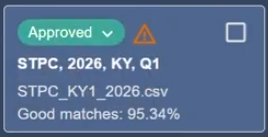
Download an Individual Report
To download only the report currently displayed, open the report tab you want to download.
Click the download icon for the report.
The selected report downloads as a separate file.
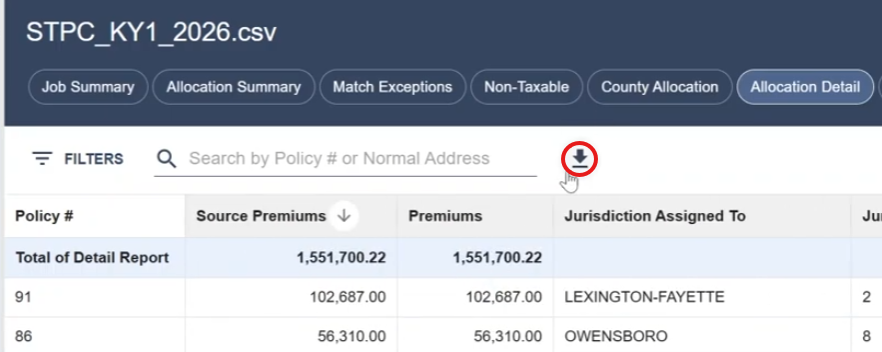
Use this option when you only need one report, such as the Allocation Detail report, Match Exceptions report, or Non-Taxable report.
Open the Job Export Menu
To download all reports or export files for the job, right-click inside the job tile in the jobs list.
The export menu appears.
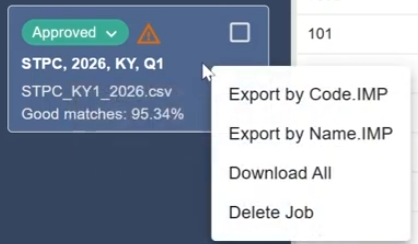
Download All Reports
Select Download All to download a zip file for the selected job.
The zip file includes the available Allocator reports in CSV format. It may also include an import file that can be used for the next step, depending on the job and export options available.
Use Download All when you want to save a complete copy of the job results.
Export by Code
Select Export by Code to create an import file organized by jurisdiction code.
This option can be used when you need a Municipal import file based on municipal or jurisdiction codes.
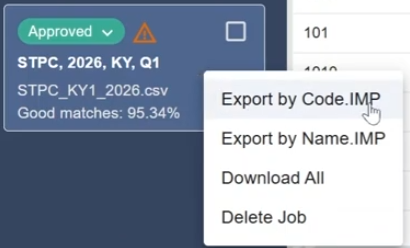
Export by Name
Select Export by Name to create an import file organized by jurisdiction name.
This option can be used when you need a Municipal import file based on municipal or jurisdiction names.
Push Premiums to Municipal
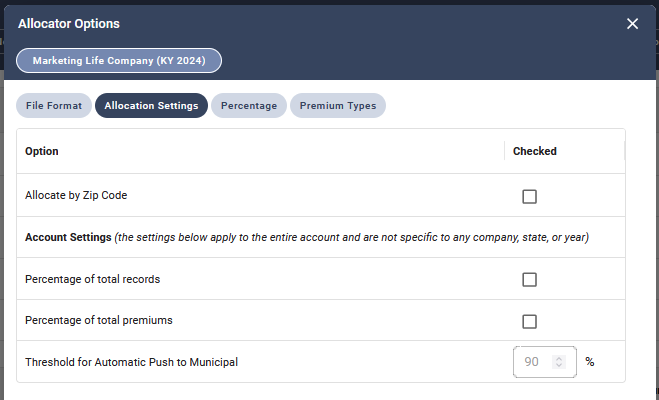
If available, right click to select Push Premiums to Municipal to send allocation results directly to Stratus Municipal. This option may be available when a matching company, state, and year are registered in Stratus Municipal.
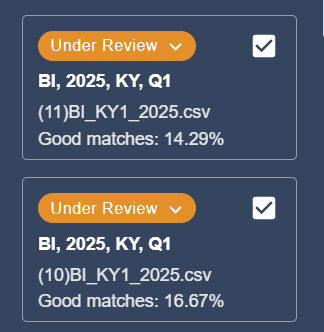
The threshold options are also available and can be used during the transfer process.
Export Multiple Jobs
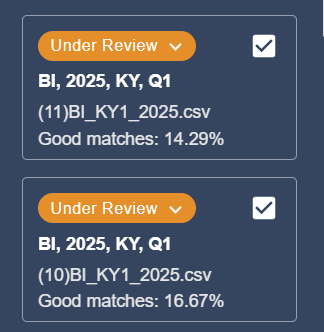
If you need to combine results from more than one job, select the checkbox for each applicable job before opening the export menu.
Then right-click inside one of the selected job tiles and choose the export option you need.
You can only aggregate jobs when the company, state, quarter, and year are the same for each selected job.
Confirm the Downloaded Files
After downloading or exporting, confirm that the expected files were created.
Depending on the option selected, the download may include:
- Individual report file
- Zip file containing reports
- Municipal import file by code
- Municipal import file by name
- Aggregated import file, if multiple jobs were selected
Next Step
After downloading or exporting the files, continue with the next step in your reporting or filing process.
If you exported a Municipal import file, use the file in Stratus Municipal to continue processing the applicable Municipal returns.
Related Articles
- How do I process an Allocator file?
- Approve an Allocation Job
- Allocator Reports
- Non-Taxable Allocations
- Report Tools: Search, Filter, Sort, and Manage Columns
- Workspace Overview